

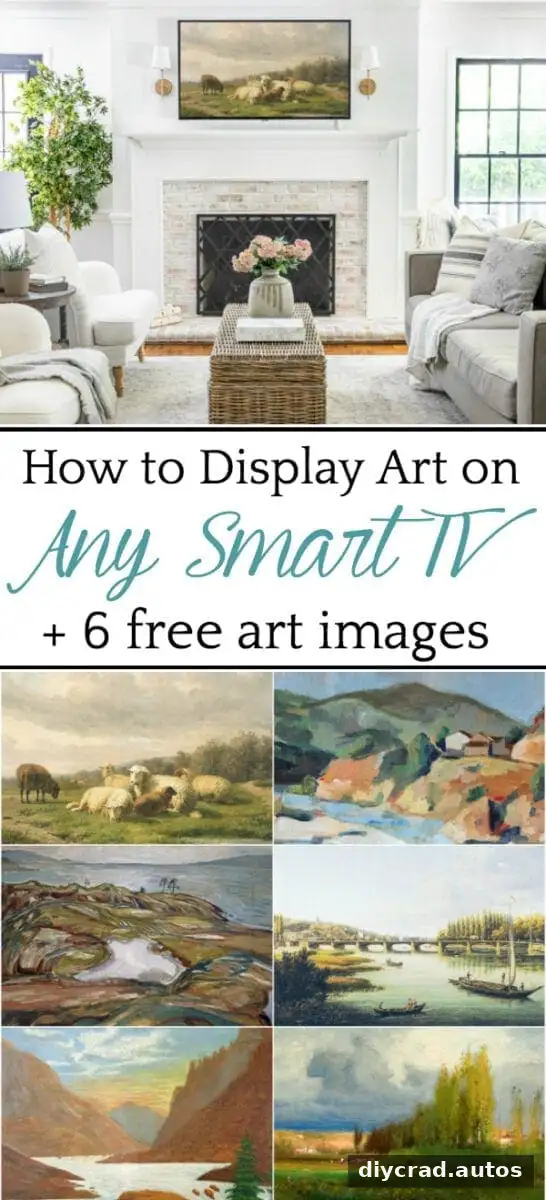
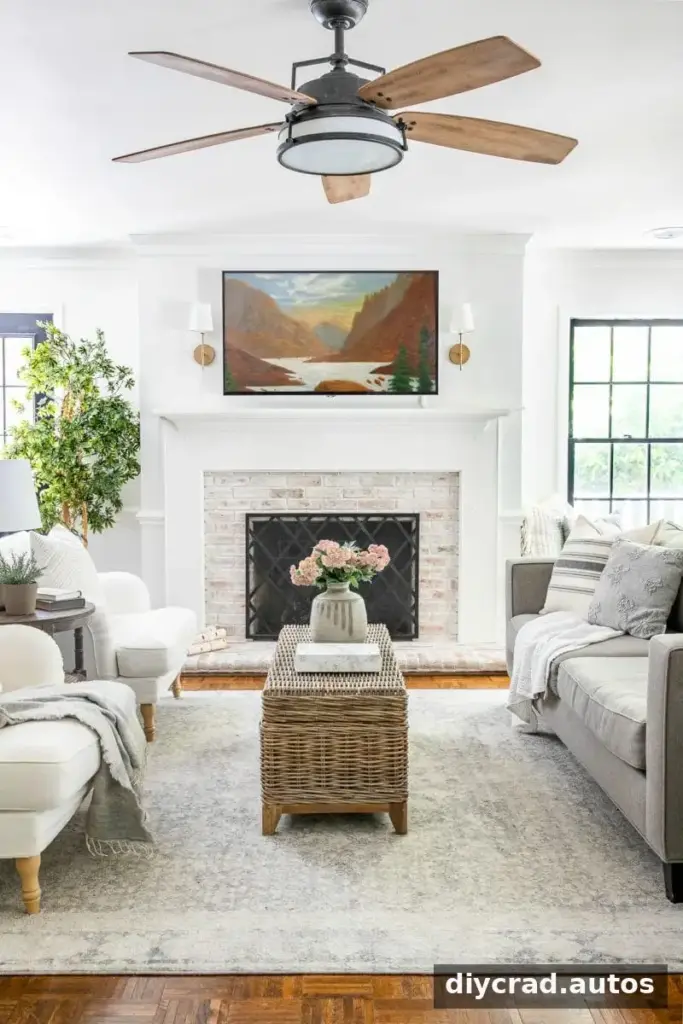
Displaying TV art on a regular smart TV can make a blank screen feel more at home in your living space. Depending on your device, you can show personal photos, public-domain artwork, or other images as a screensaver without buying a dedicated art TV. The steps below cover several common options, along with practical tips for screen safety and image quality.
Dedicated art TVs are designed to show artwork when they are not being used for television. However, many existing smart TVs and streaming devices also offer screensaver or ambient-display features. The exact menu names can vary by device and software version, so check your settings if an option appears in a different place.
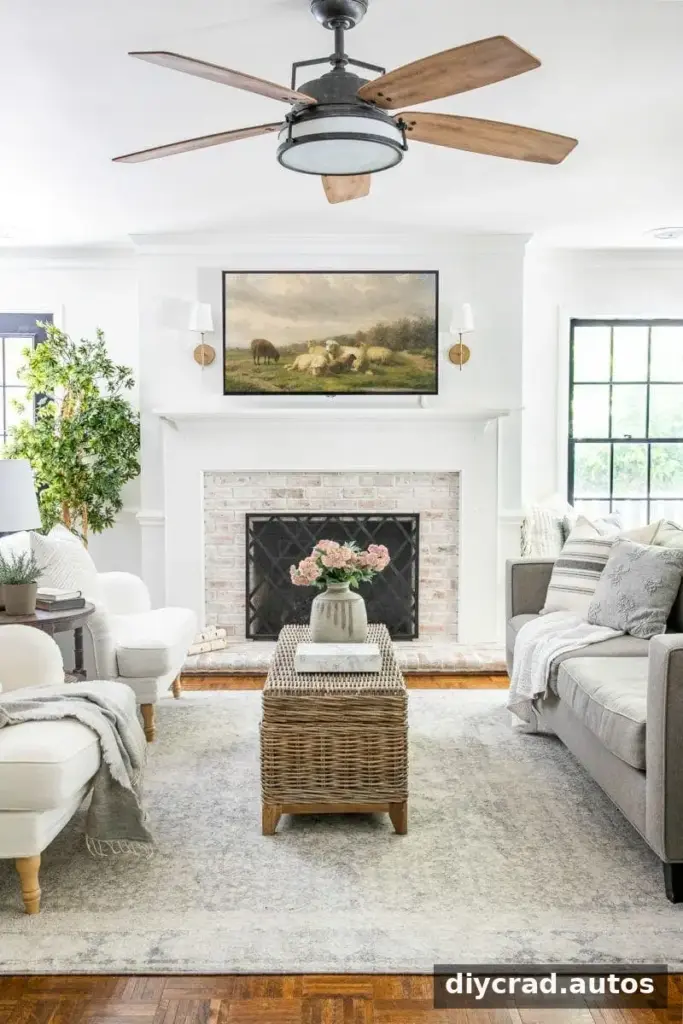
How to Display TV Art on a Smart TV
Before you begin, choose the images you want to display and put them in a dedicated album or folder. This makes setup easier and helps prevent unrelated photos from appearing. Use images with a suitable landscape aspect ratio for your screen; a 3840 × 2160-pixel image is a useful size for a 4K display.
Chromecast
- Upload your selected images to an album in Google Photos.
- Connect the Chromecast device to your TV.
- Open the Google Home app and select your Chromecast.
- Find the Ambient mode settings and choose the Google Photos album or art gallery option available on your device.
Tip: If your album does not appear, confirm that you are signed in to the same Google account used for the photos and that the album contains images.
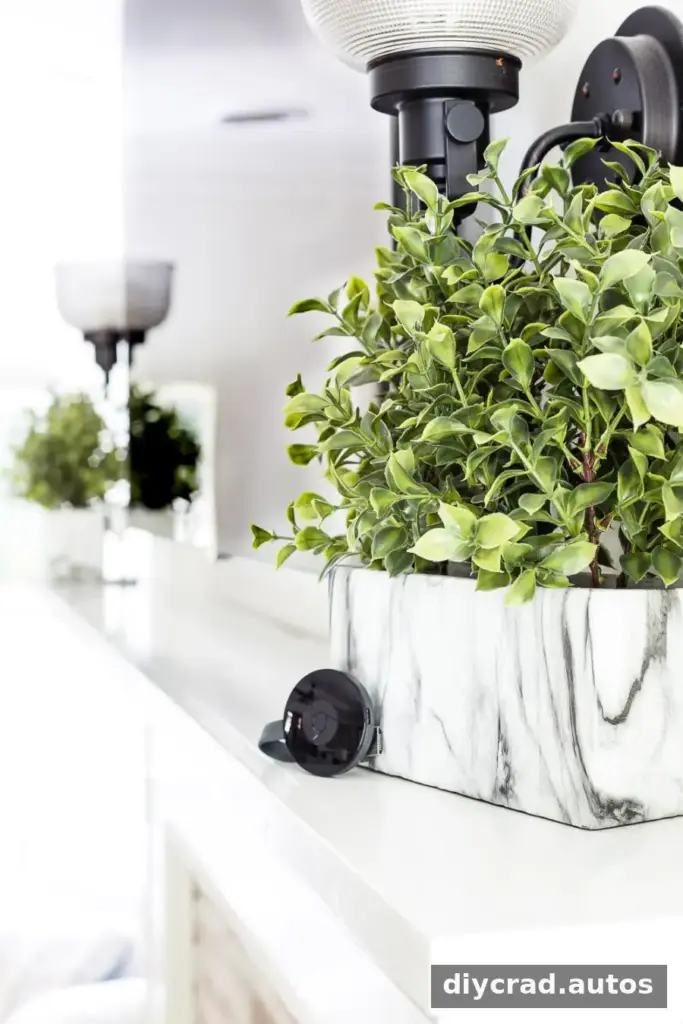
Apple TV
- Upload the images to an album in iCloud Photos.
- Enable iCloud integration in Apple TV settings.
- Open the screen saver options in Settings.
- Choose Photos or iCloud Photos, then select the album you want to display.
Review the photo-sharing options during setup and select the album you intend to use. Menu labels can differ between Apple TV software versions.
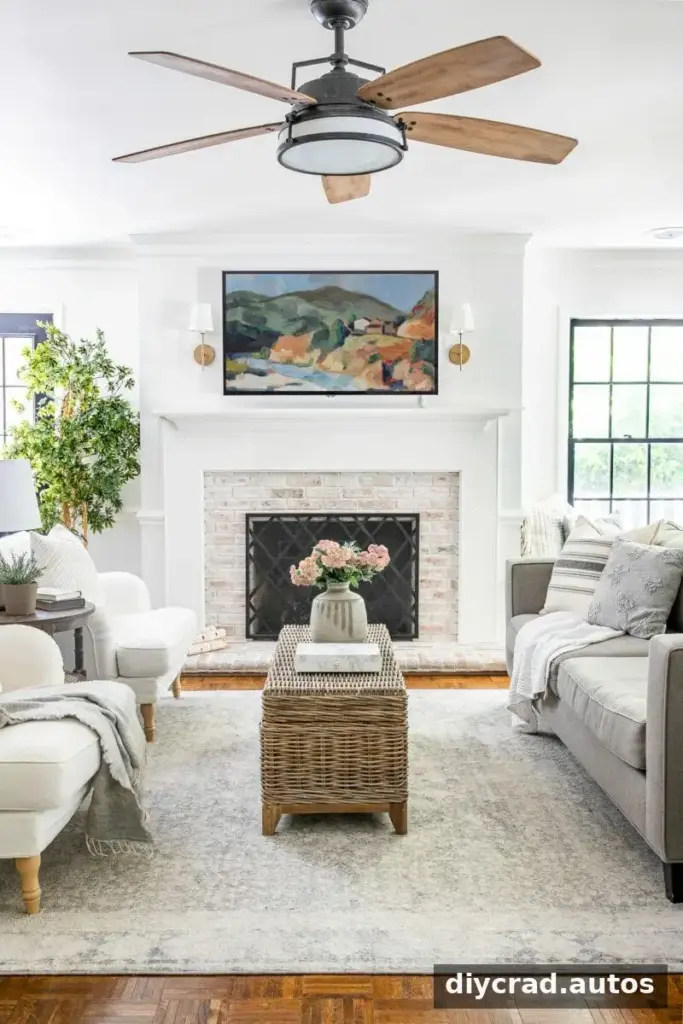
Roku
- Upload your images to a Google Photos album.
- Install the Photo View channel on your Roku device.
- Open Photo View and follow its prompts to sign in to your Google account.
- Select the album containing the artwork.
- In Roku settings, choose PhotoView as the screensaver and adjust the wait time before it starts.
Look under Settings > ScreenSaver for screensaver and wait-time controls. The available options may depend on your Roku model and software.
Fire TV
- Use the Amazon Photos app for iOS or Android, or sign in through a web browser.
- Upload your selected images and place them in a folder or album.
- On Fire TV, open the screen saver settings and select the album.
- Adjust when the screensaver begins using the available timing controls.
A clearly named folder makes it easier to select the right collection if you keep multiple photo albums.
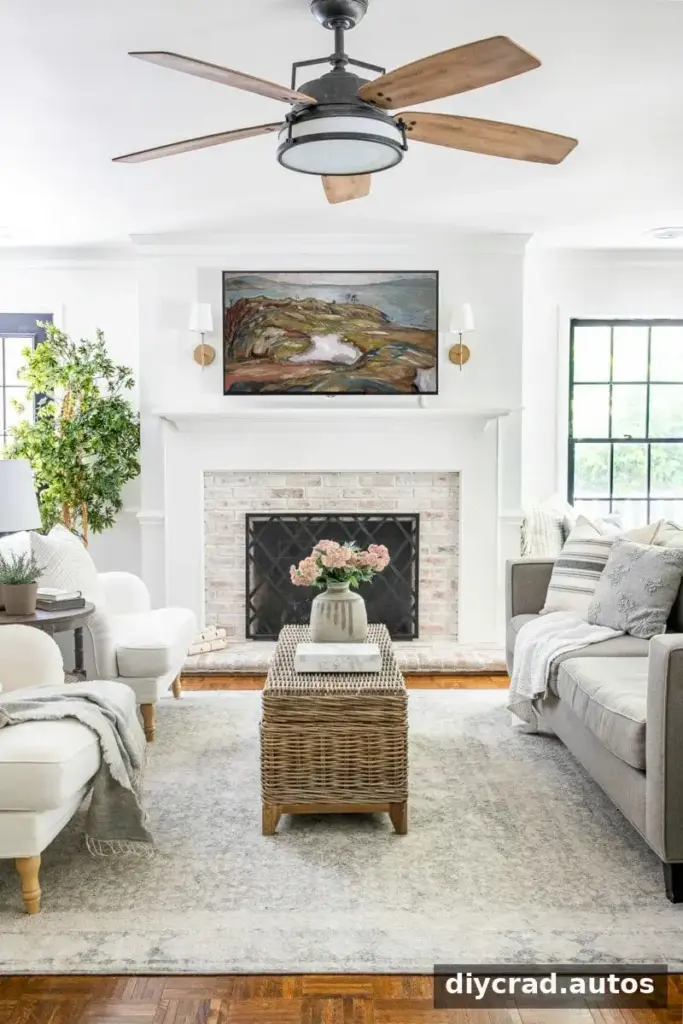
YouTube Art Screensavers
Playing an art screensaver video through the YouTube app is another option for many smart TVs. It does not require transferring image files to the television, although it does require an internet connection.
- Open the YouTube app on your smart TV.
- Search for “TV Art Screensaver.”
- Choose a video that suits your room and viewing preferences.
- Switch the video to full screen using the on-screen controls.
Many art screensaver videos run for one to two hours, so they may need to be restarted. Some include background music; lower or mute the TV volume if you prefer a quiet display. You can also adjust brightness, contrast, or color settings to suit the room, but note your original settings first so they are easy to restore.
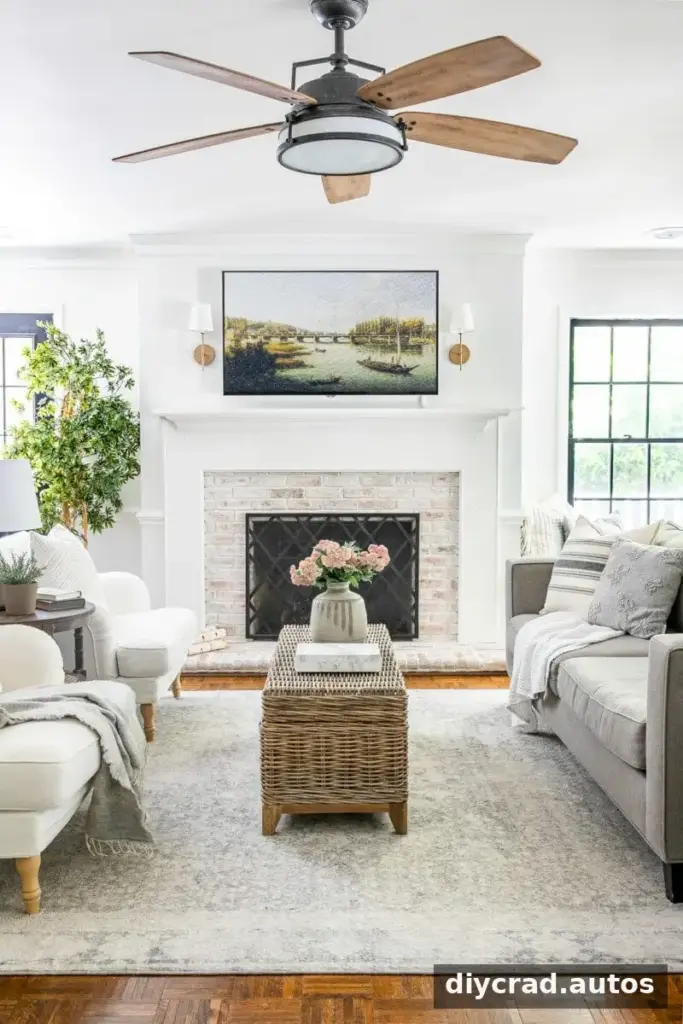
When to Use a TV Art Screensaver
A screensaver can be useful during a gathering or when you want a room to feel less dominated by a dark screen. On a regular TV, treat art display as an occasional feature rather than leaving one image on continuously. Long periods with a static image can contribute to image retention or burn-in, depending on the display technology and model.
Dedicated art TVs may include features such as motion detection or display modes designed for artwork. On any television, follow the manufacturer’s guidance and turn the screen off when the art is not needed. Lowering brightness in a dim room can also make the image more comfortable to view.
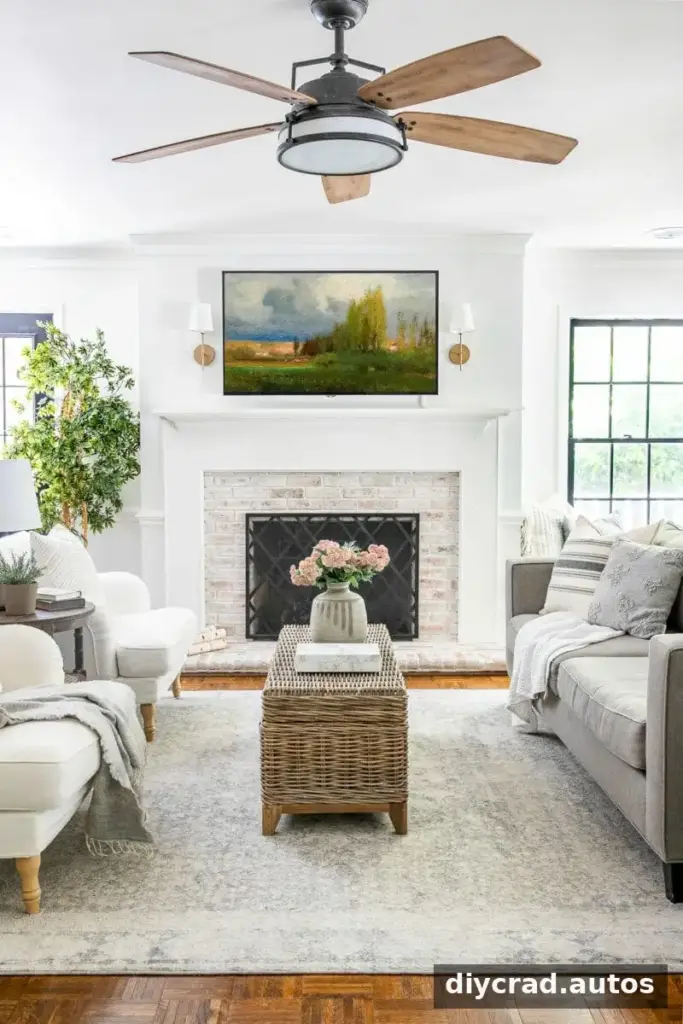
Free TV Art Downloads
Six public-domain art images formatted for TV displays are referenced with this article. If the files are available in the accompanying download area, save them to your device and upload them to the photo service or folder used by your TV setup.

The supplied downloads are for personal use. They are not intended for commercial use, redistribution on other websites or social media, or use in advertising. Check the terms that accompany any artwork before sharing or reproducing it, since usage conditions can differ between files.
For a Samsung Frame TV, image files can be added to the gallery through the SmartThings app. The same images can also be printed and placed in a conventional frame, provided the file’s usage terms allow it.
Frequently Asked Questions
What image size fits a TV screen?
A 3840 × 2160-pixel image is suitable for a 4K TV screen. For the clearest result, use a landscape image with an aspect ratio that matches your television and avoid enlarging a small file too much.
Can a TV screen experience image retention?
Yes. LCD TVs can experience image retention, and other display types may be susceptible to burn-in under certain conditions. Avoid leaving a static image on the screen for extended periods, especially when the TV is unattended.
Conclusion
There are several ways to show TV art on a smart TV, from setting up a photo album with a streaming device to playing a screensaver video. Choose the method that matches your equipment, use appropriately sized images, and limit how long static artwork stays on screen. These simple steps can help you enjoy a more decorative display while taking care of your TV.

