

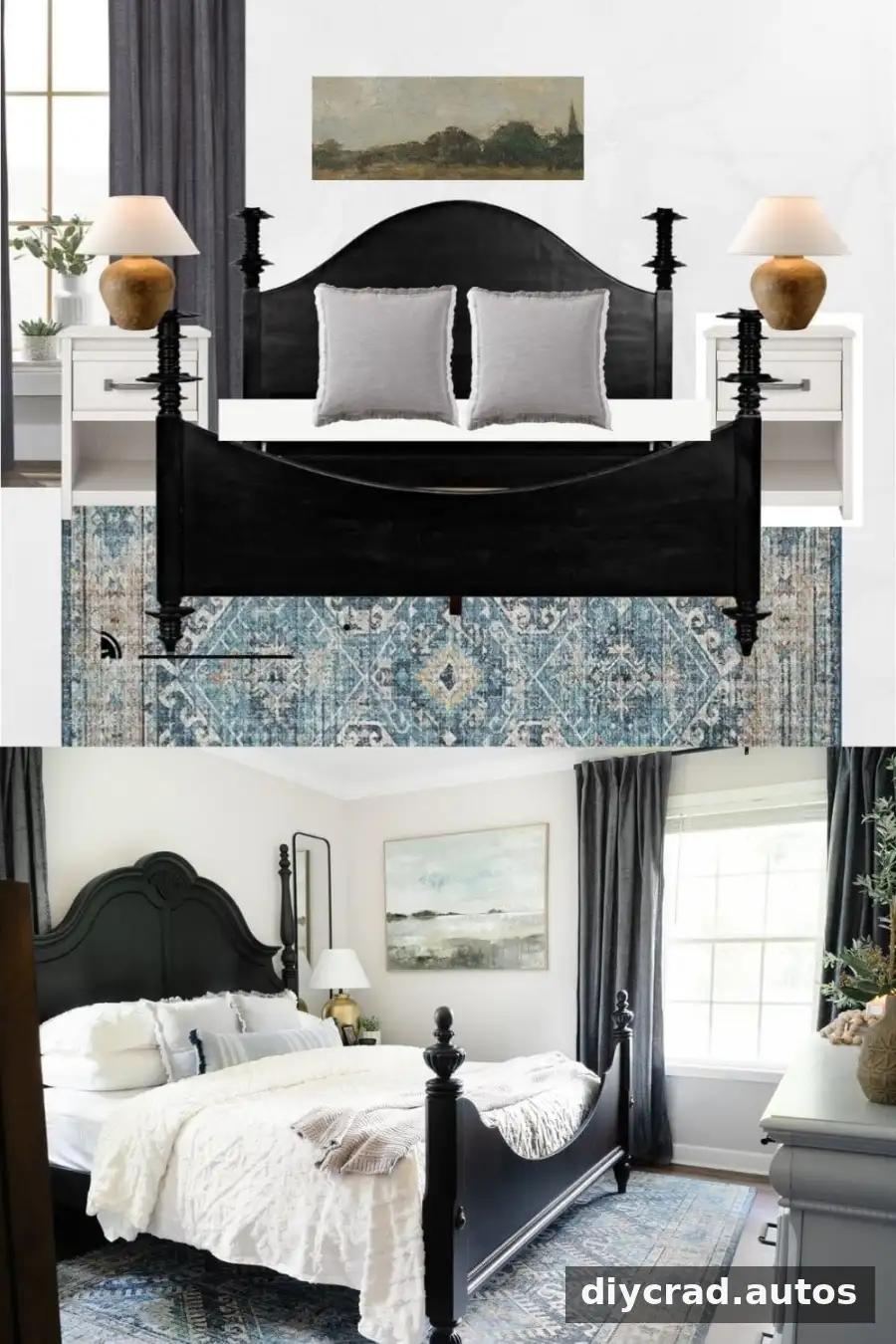
A Canva room mood board can help you plan a makeover before committing to paint, furniture, lighting, or other purchases. By arranging inspiration images and product photos together, you can compare colors, patterns, and textures in one place and refine the overall look before work begins.
Why Make a Canva Room Mood Board Before a Makeover?
A mood board lets you preview how design choices may work together. It can make it easier to spot colors or patterns that compete, and to see whether the pieces you are considering support one consistent direction. This simple planning step may also help you avoid buying items that do not suit the room or your budget.
Mood boards are useful when planning with another person, too. A shared visual plan gives everyone a clearer picture of the intended result before decisions are finalized. Treat the board as a guide rather than an exact room rendering: images can vary in color and scale, so check product measurements and samples before purchasing.
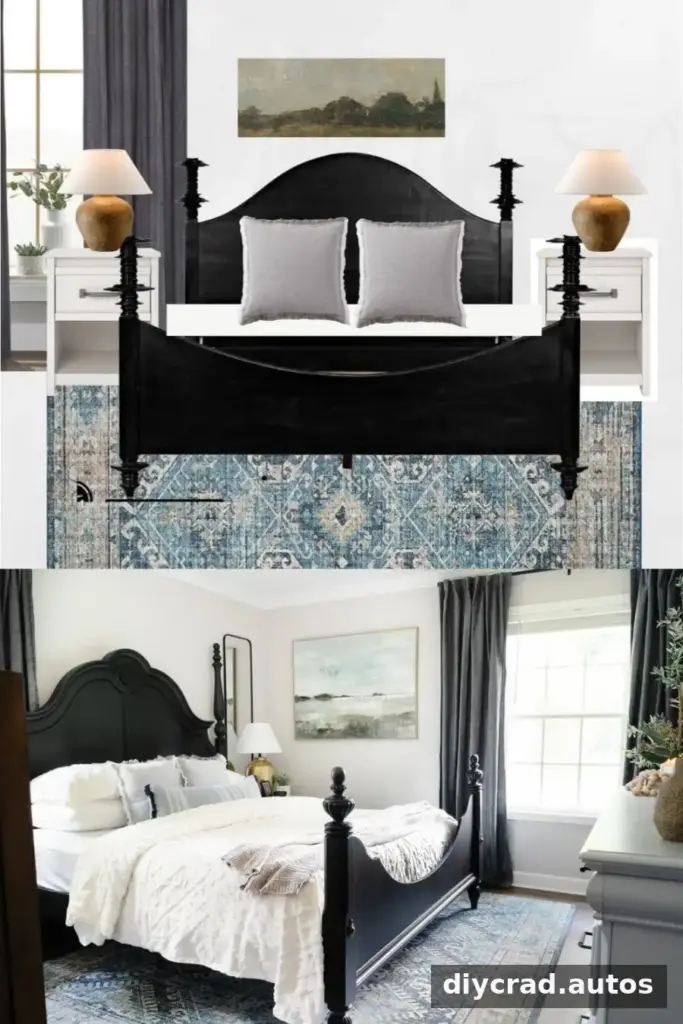
Rug | Curtains | Duvet Set | Gray Pillows | Blue Pillow | Mirror | Lamp | Throw
Gather Inspiration Before You Start
Browse design websites, social platforms, blogs, and search results for rooms, colors, and individual items that fit your ideas. Save useful images in one folder so they are easy to find when you build the board. Include a mix of large pieces, such as rugs or wallpaper, and smaller details, such as pillows, lamps, and throws.
Before collecting too many options, decide what the room needs to do and note any practical limits. Consider the room’s size, existing furniture, lighting, and budget. A short list of priorities can help keep the board focused and make it easier to compare alternatives.
Create an account in Canva and choose the available plan that suits your needs. The free and paid features may differ, so check the current options in your account. The steps below focus on arranging images; some tools, including background removal, may require a paid plan.
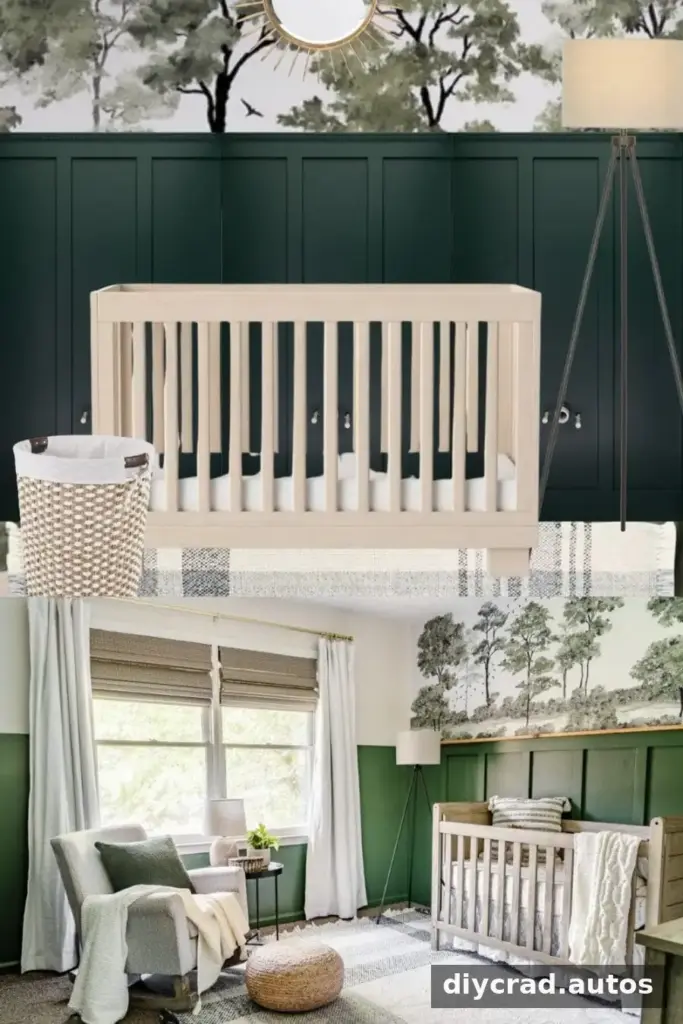
Rocking Chair | Rug | Pouf | Green Pillow | Cream Pillow | Throw | Table | Floor Lamp | Table Lamp | Mural
How to Create a Canva Room Mood Board
1. Create a design and choose a layout
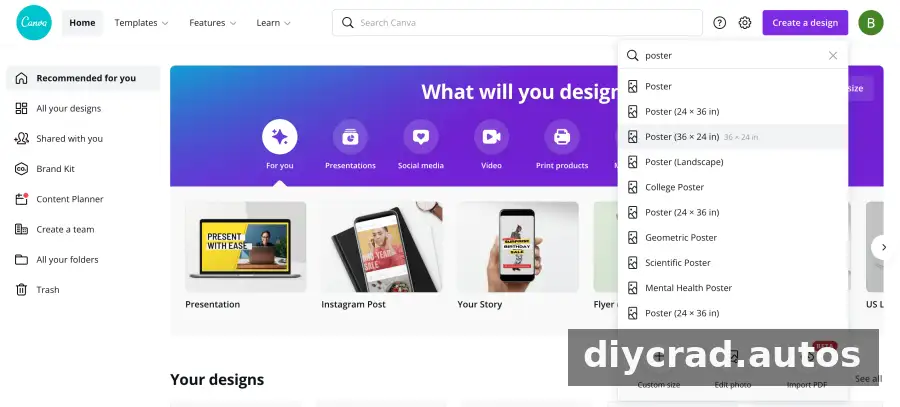
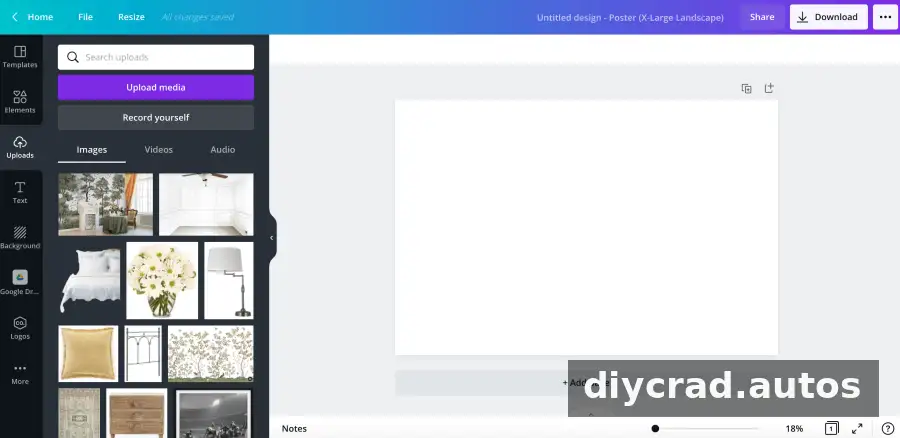
Open Canva and select the option to create a design. Search for “poster,” then choose a size and orientation that give you enough space to arrange your ideas. A larger canvas can be useful when you have many items, while a simpler board may be easier to review on a phone or share with others.
2. Upload your inspiration images
Use the upload tool to add the images you saved to your folder. Keep the original files organized, especially if you are comparing several versions of the same item. Clear filenames can make it easier to locate a specific rug, paint color, or light fixture later.
3. Place the foundation pieces first
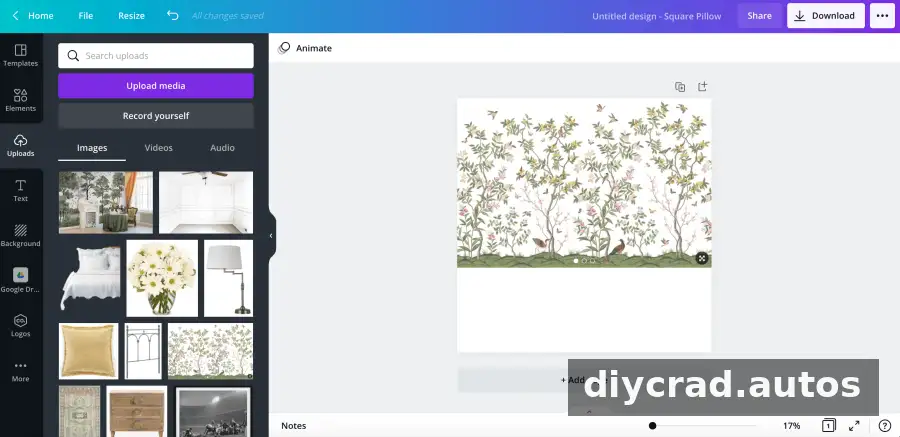
Start with a large or visually important element, such as flooring, wallpaper, or a rug. These pieces often set the palette and pattern direction for the rest of the room. Add furniture and smaller accessories afterward so you can judge how they relate to the foundation.
4. Resize, position, and rotate images
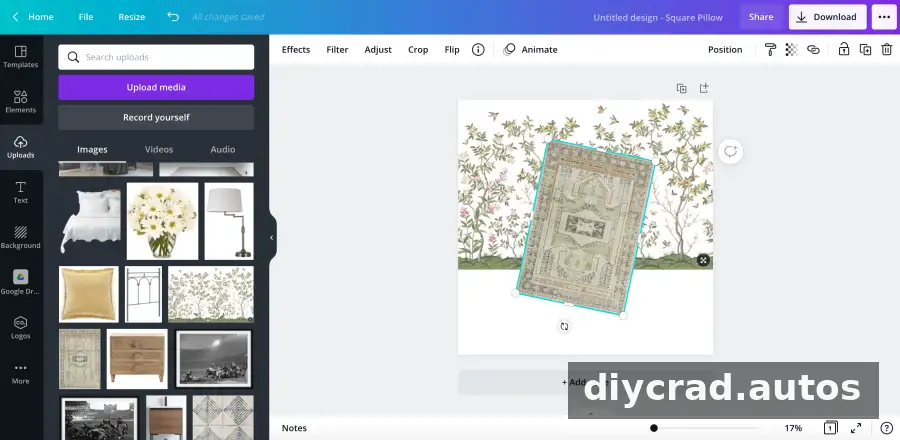
Select an image and drag a corner handle to adjust its size. Drag the image itself to reposition it on the canvas. To change its angle, select it and use the rotation control. Keep related options near one another so comparisons are easy to make.
5. Remove backgrounds when needed
If an image has a distracting background, use Canva’s background-removal tool if it is available with your plan. Select the image, open “Effects,” and choose “Background Remover.” Feature names and availability can change, so check the current editor if the option is not shown.
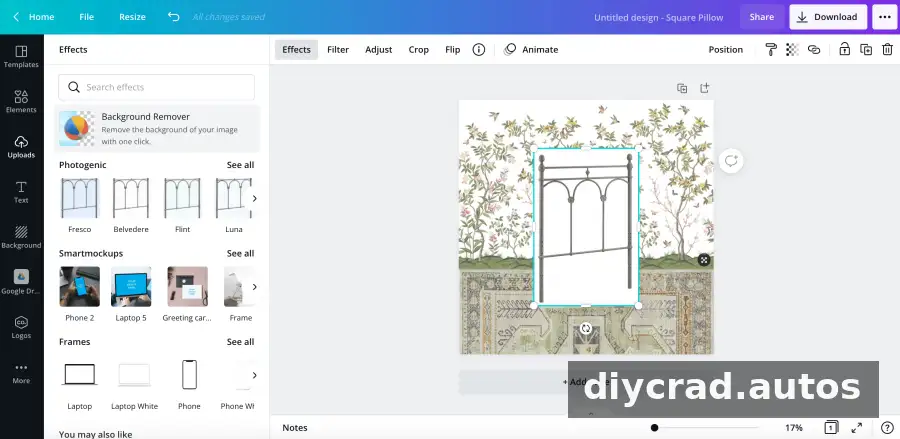
If you do not have access to that feature, you can use a separate background-removal tool, save the edited image, and upload it to Canva. Review the result before adding it: fine edges, transparent materials, and shadows may not be removed perfectly.
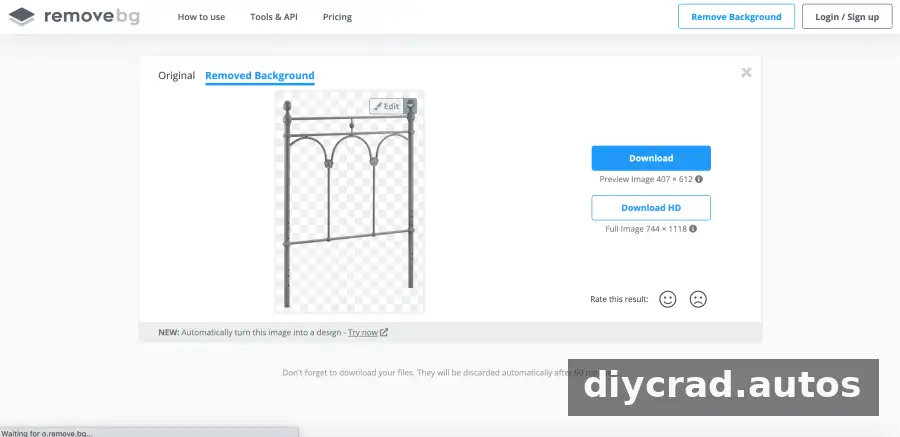
6. Duplicate, flip, and layer items
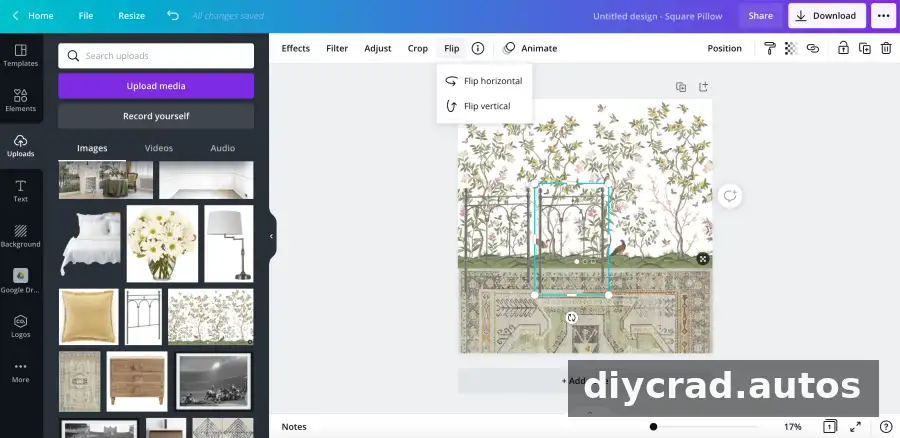
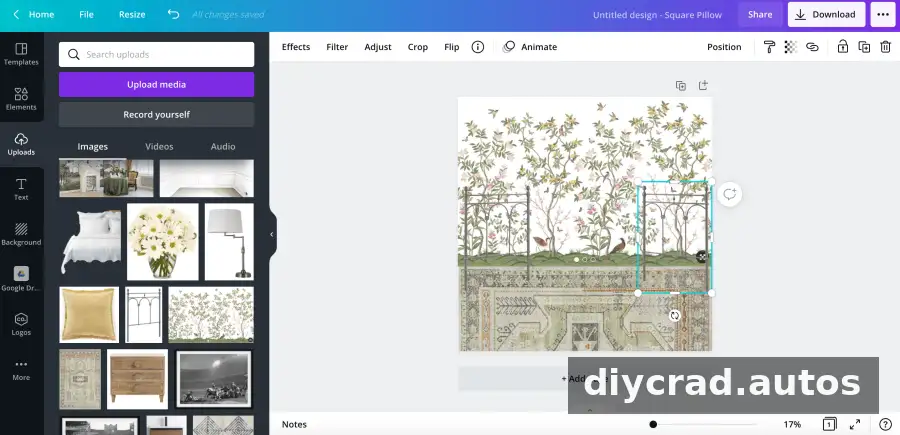
To make a copy of an image, use the editor’s copy and paste commands, then move and resize the duplicate. This is handy for showing matching lamps or pillows. Use the “Flip” controls to reverse an image horizontally or vertically when that helps with the layout.
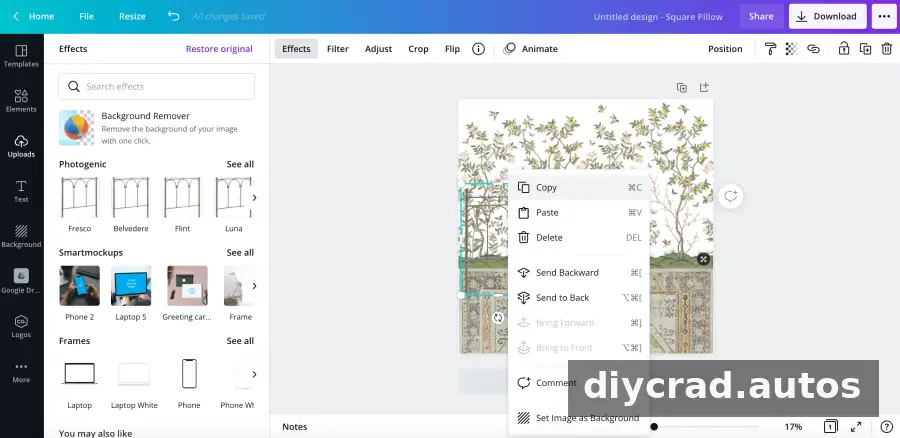
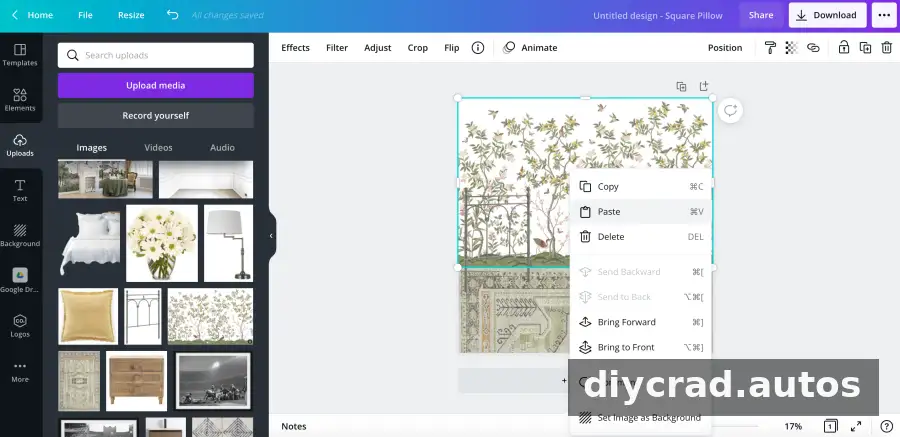
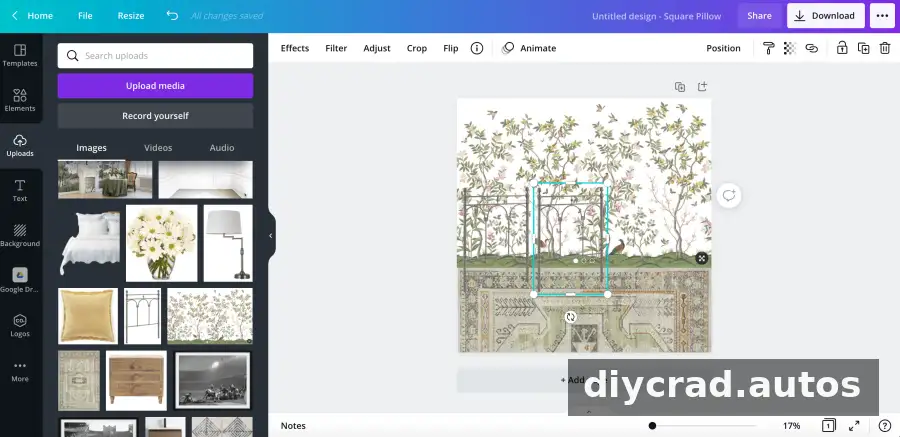
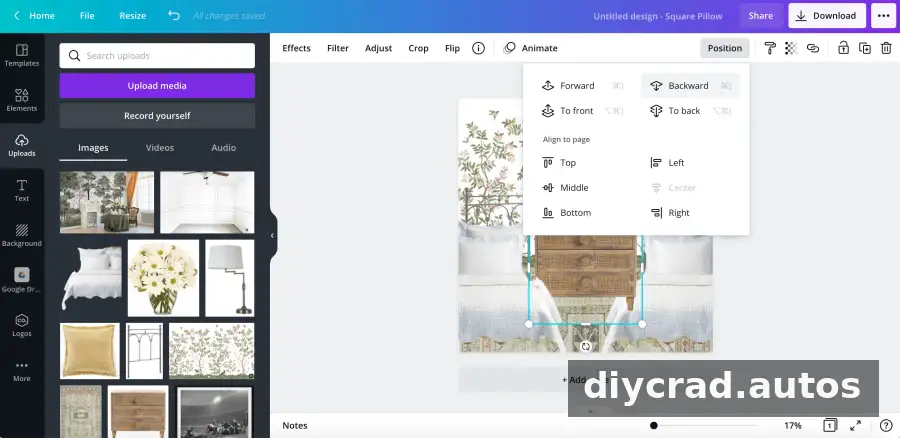
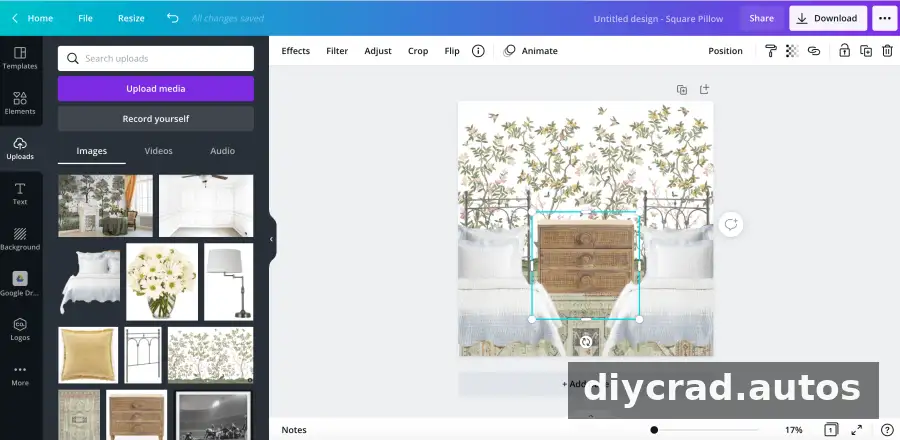
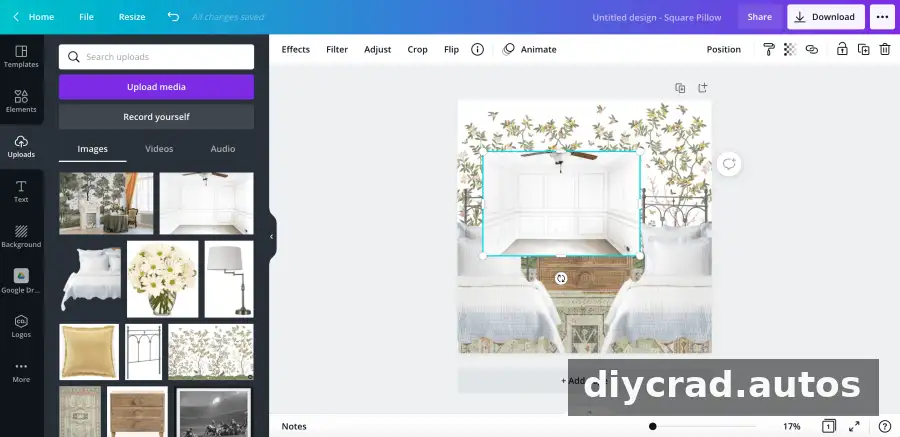
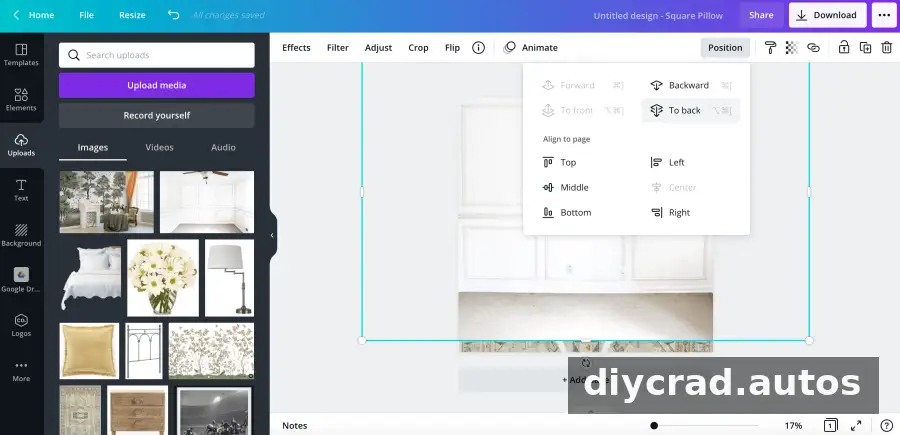
To control which objects overlap, select an image and open “Position.” Choose an option such as “Move Forward,” “Move to Front,” “Move Backward,” or “Move to Back.” Layering can help you create a more natural arrangement, but avoid covering details you need to compare.
7. Preview the design with a room photo
Upload a photo of the room and place it behind the design elements using “Position” and “Send to Back.” This provides a useful visual reference, though it will not reproduce exact dimensions, lighting, or product colors. Use measurements and physical samples for final decisions.
Review and Refine Your Mood Board
Try a few combinations before settling on a direction. Remove options that do not fit your priorities, and check that the board includes the main categories you need, such as flooring, furniture, lighting, textiles, and wall decor. If possible, compare the design on a larger screen and ask anyone sharing the project to review it before purchases are made.
When the layout feels cohesive, save or export the board so you can refer to it while shopping and planning. Keep product dimensions, finish details, and prices in a separate list; a mood board helps communicate the look, but it is not a substitute for checking specifications.
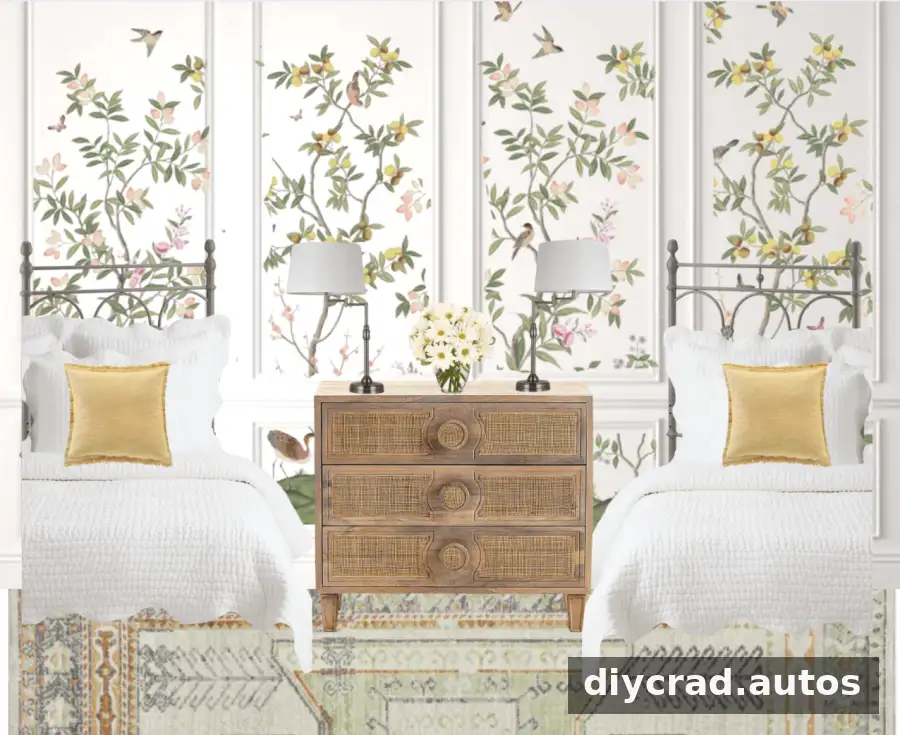
Wallpaper | Rug | Dresser | Headboards | Quilts | Lamps | Pillows
Conclusion
A Canva room mood board is a practical way to test a room’s colors, patterns, and decor before starting a makeover. Gather inspiration, arrange the larger elements first, and use the board to compare options. Then confirm measurements, prices, and finishes before buying so your design plan works in the real room as well as on the screen.

Frequently Asked Questions
Who uses mood boards?
Interior designers, graphic designers, photographers, fashion designers, and other creative professionals use mood boards to organize visual ideas. Homeowners can use them to plan a room or communicate a design direction.
What is another name for a mood board?
A mood board may also be called an inspiration board, theme board, design scheme, collage, or lookbook. The exact term depends on the project and how the visual collection is used.

